Writing Workspace
Save History
How version history protects work, shows progression, supports restore, and exports PDFs.
Last updated September 16, 2025
What is Save History?
Save History in Personify acts as a version history. It lets students and teachers see all saved versions of a paper, restore earlier drafts, and even export work if needed. It ensures work is never lost and provides visibility into the progression of writing.
How Save History Works
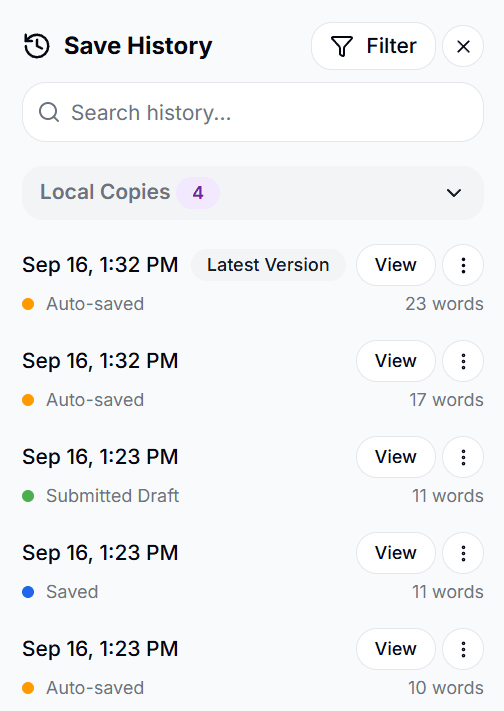
When students are in the Writing Workspace or teachers are in the Grading View, clicking the icon opens the Save History panel, which shows:
- Auto-saves – Captured automatically while students type, so no progress is lost.
- Manual saves – Created when a student clicks Save.
- Submitted drafts – Saved when a student clicks Submit for their teacher.
Each entry shows the time stamp and word count at that point. Students and teachers can click View to open any past version.
Filtering Versions
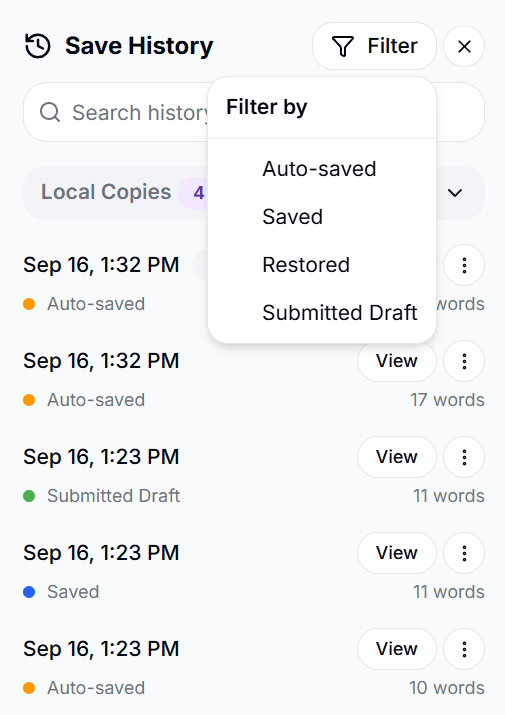
The Save History panel also includes a Filterbutton. You can filter by:
- Auto-saved
- Saved
- Restored
- Submitted Draft
This makes it easier to find a specific type of version if there are many saved entries.
Searching Versions
At the top of the Save History panel, you'll see a Search bar. Type in a keyword, and Personify will highlight which saved versions contain that word. This makes it easy to:
- Find when a specific phrase or citation was added.
- Track changes to important terms across drafts.
- Jump directly to the version that includes the content you're looking for.
Local Copies
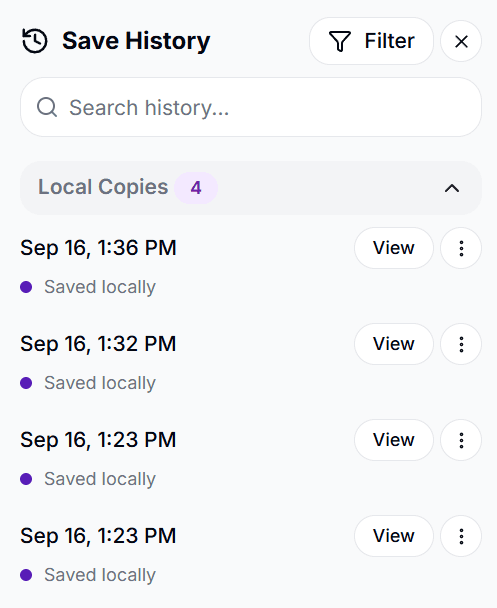
Local copies are versions stored in the browser while work is active. They help protect progress if the internet connection is interrupted.
Restore and Export
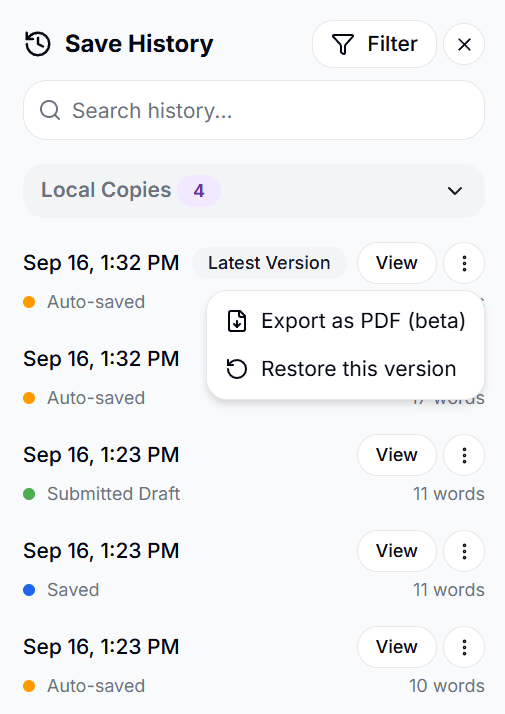
- Restore a version – Click the three-dot menu (⋮) next to a saved version or local copy and choose Restore to roll back the paper to that point.
- Export as PDF – From the same menu, select Export as PDF if your teacher requests that you turn in your paper through your LMS (e.g., Canvas, Google Classroom).
Benefits of Save History
- Students: Quickly recover work if text was deleted or overwritten, and keep track of drafts.
- Teachers: See whether a draft was submitted and view progression over time.
- Admins: Rely on consistent version records for integrity and backup purposes.
Things to Keep in Mind
- Save history saves automatically—you don't need to worry about losing your work.
- Students cannot delete save history.
- Teachers may see submitted drafts and general progression, but details like “word count jumps” are primarily for ensuring reliability, not grading.
FAQs
- Can students delete or hide versions? No. Versions stay linked to the assignment.
- Can I restore an older version without losing my latest draft? Yes. Restoring creates a new entry.
- Do I have to export as PDF? Only if your teacher requires it.